
Learning Mode
Learning mode allows you to memorize your ranges through an interactive review system based on quizzes. Unlike simple passive reading, this mode forces your brain to actively retrieve information, which significantly improves long-term memory retention.
Why Use Learning Mode?
- Active memorization: You must find the range for each hand, which reinforces memory anchoring
- Focus on edge cases: The system automatically identifies "border combos" that are the most difficult to remember
- Immediate feedback: Instantly see your mistakes with a side-by-side visual comparison
- Personalized review: Work on a specific grid or an entire folder according to your needs
How Does It Work?
General Principle
Learning mode presents you with poker hands (for example AK suited, QQ, 76 offsuited) and asks you to select the corresponding range from multiple choices. Unlike a classic quiz that would test all 1326 possible combinations, Poker Toolkit uses an intelligent algorithm that focuses on border combos: hands located within ranges, at the boundary between two ranges, or just outside a range.
Border Combos: Why Is It Effective?
Border combos are the most difficult hands to memorize because they are the ones where we hesitate the most. For example:
- If your UTG range contains QQ+ and AK, the border combos will be: JJ (just below QQ), AQ (just below AK)
- These hands are the most likely to be confused or forgotten
The algorithm automatically extracts these border combos from all your ranges, eliminates equivalent duplicates (AKs/AKo are tested separately), then randomly shuffles them to create your quiz.
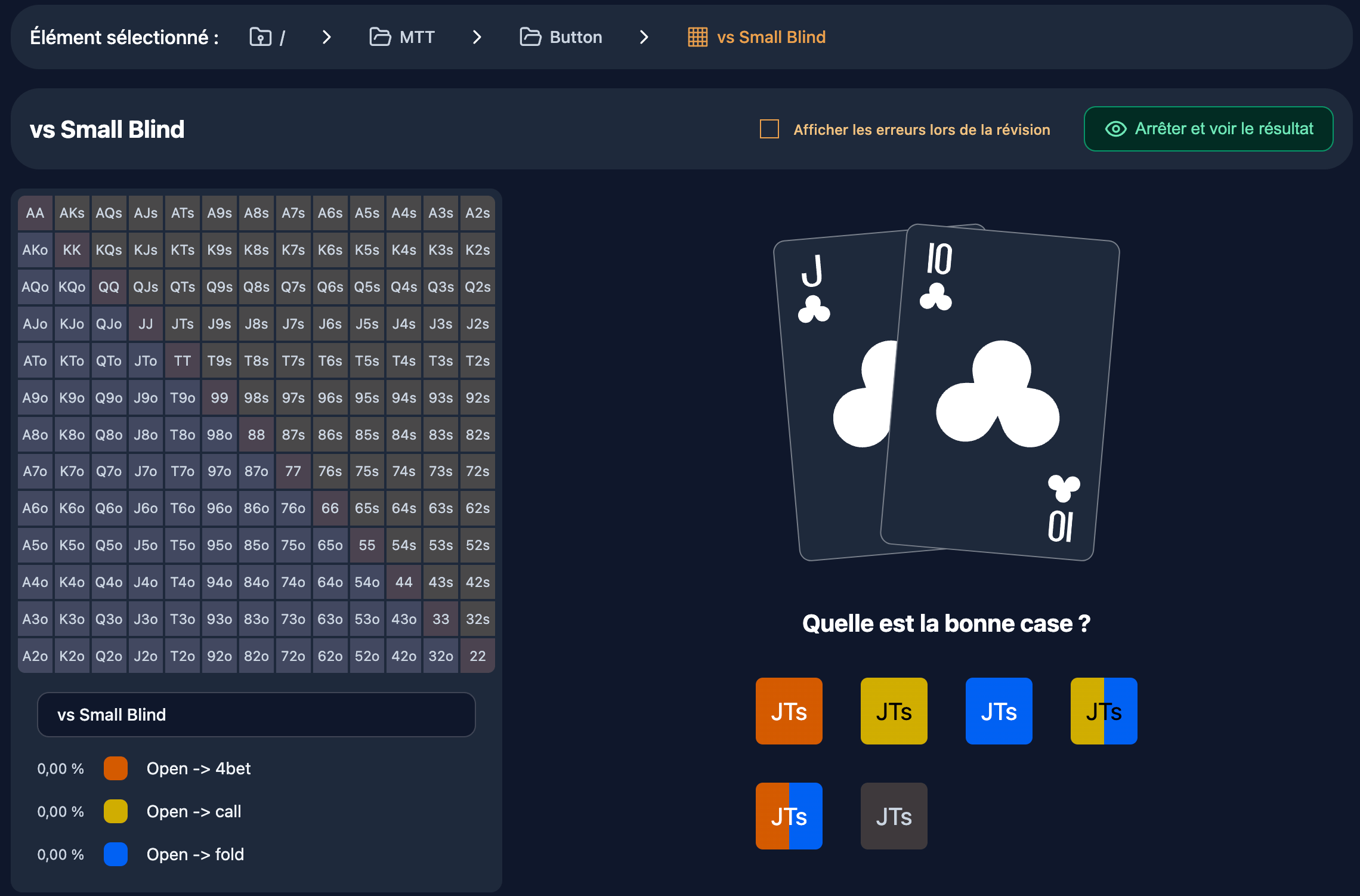
The Quiz Interface
View During Review
The interface consists of three main sections:
Cards section (top):
- Displays the 2 poker cards
Multiple choice section (center):
- Several clickable tiles representing possible ranges
- Each tile displays the range name (e.g., "UTG Open", "BTN 3-bet vs CO")
- The correct tile is generated with 2-3 strategically chosen wrong answer tiles and the other ranges present on the grid
13×13 Grid (bottom):
- Displays the complete grid with your ranges
- Non-interactive during the quiz
- Optional checkbox: "Show errors during review"
- If checked: displays in real-time the correct combos (green) and incorrect ones (red)
- Useful for learning in "open book" mode
Generating Multiple Choices
The algorithm intelligently generates wrong answers:
- If the combo appears in only 1 range: creates options with different distributions (e.g., 100%, 75%, 50%)
- If the combo appears in multiple ranges: mixes 2-3 other ranges from the grid as wrong answers
This ensures that the choices are plausible and that you really need to know your ranges to answer correctly.
Validation and Feedback
During the Quiz
With each answer, you can:
- Select a tile: your choice is recorded
- Change your answer: click on another tile before moving to the next question
- Show errors: check the box to immediately see if your answer is correct (green/red overlay)
The "Stop and see result" button is always available if you want to end the quiz early.
After the Quiz
Once all questions are answered (or if you stop manually), you access the results view:
Split screen view:
- Left: your answers with green (correct) or red (incorrect) highlighting
- Right: the expected ranges (the "correction")
- Score: "{number} correct answers out of {total}"
This side-by-side comparison allows you to instantly identify your mistakes and understand where the correct combos were.
Score and History
Score Calculation
The score is calculated by going through all 169 cells of the 13×13 grid:
- Correct combo: your range matches the expected range → +1 correct answer
- Incorrect combo: your range doesn't match → +1 wrong answer
- Unanswered combo: ignored (doesn't count in the total)
Formula: Score = {correct} correct answers out of {correct + wrong}
Session Recording
Each review session is automatically recorded in Firebase with:
- Date and time: session timestamp
- Grid ID and name: reviewed grid (name at time of learning)
- Expected ranges: snapshot of correct ranges at that moment
- Your answers: snapshot of your selected ranges
- Score: number of correct and wrong answers
This history allows you to:
- Track your progress over time
- Identify grids that need more review
- Compare your performance between different sessions
Note: Currently, there is no dedicated interface to view the complete session history. The data is stored but display is planned for a future version.
Learning a Grid vs Learning a Folder
Learning a Single Grid
Access: from the grid editor, click on the "Learn" button in the grid actions.
How it works:
- The algorithm extracts border combos from all ranges in this grid
- Combos are randomly shuffled
- The quiz starts with the first combo
- At the end, you return to the editor for this grid
Special cases:
- If the grid contains no combos to learn: an alert message is displayed
Learning a Complete Folder
Access: from the grid explorer, click on the "Learn" button on a folder.
How it works:
- Poker Toolkit recursively scans the folder to find all grids (subfolders included)
- Grids are randomly shuffled
- The quiz starts with the first grid in the list
- At the end of a grid, you automatically move to the next one with a "Review next grid" button
- When all grids are completed, you return to the explorer
Advantages:
- Review multiple grids at once (e.g., all your preflop ranges)
- Random order to avoid learning in a predictable sequence
- Track the number of grids reviewed vs remaining
Special cases:
- If the folder contains no grids: alert message
- If you manually change grids during folder learning: the queue is reset
Concrete Use Cases
1. Memorizing a UTG Preflop Range
Context: You created a "UTG Open 100bb" grid with ranges: Open, 3-bet, Fold.
Process:
- Open the grid in the editor
- Click on "Learn"
- The system generates questions on your range combos, including border combos (boundaries)
- You answer questions: "AA → Open", "JJ → Open", "T9s → Fold"
- Result: 8/10 correct answers
- You identify your mistake: you put T9s in Fold instead of Open
Benefit: You now know that you hesitate on medium suited connectors in this position.
2. Reviewing All Preflop Ranges Before a Tournament
Context: You have an "MTT Preflop" folder containing 6 grids (UTG, MP, CO, BTN, SB, BB).
Process:
- From the explorer, click on "Learn" on the "MTT Preflop" folder
- Poker Toolkit shuffles the 6 grids and starts with "CO Open"
- You finish "CO Open": 12/15 correct answers
- Click on "Review next grid"
- Poker Toolkit automatically loads "BB Defense"
- Repeat until you have reviewed all 6 grids
- Overall score visible in your session history
Benefit: Complete and structured review of all your ranges in a single session.
3. Identifying Leaks with Error Display
Context: You're not sure you know your BTN 3-bet vs CO range well.
Process:
- Start learning this grid
- Check "Show errors during review"
- Answer each question
- The 13×13 grid updates in real-time with green (correct) / red (incorrect) overlay
- You notice that you systematically put AJ suited in 3-bet when it's in Call
Benefit: "Open book" learning that allows you to correct your mistakes immediately.
Related Pages
- Grid editor: create and edit your ranges before learning them
- Grid explorer: organize your grids into folders for group learning
- Draw mode: another review mode based on free drawing
- Introduction to ranges: overview of the ranges system
Usage Tips
- Review regularly: spaced repetition is the key to long-term memorization
- Use "Show errors" for the first reviews of a new grid
- Disable "Show errors" once you think you know the grid to test your memory
- Focus on the score: a score below 80% indicates that you still need to review this grid
- Analyze your mistakes in the results view to identify confusion patterns
Learning mode is the ideal tool to transform your theoretical ranges into automatic reflexes at the table. Use it regularly to anchor your strategies in memory and gain confidence in your decisions.