
Grid Explorer
The Grid Explorer is your range library: organize your grids into folders and subfolders, navigate quickly, and manage all your files from an intuitive interface.
Why the Explorer?
In poker, you need dozens of different ranges depending on:
- Position (UTG, MP, CO, BTN, SB, BB)
- Format (Cash game, MTT, Expresso, Sit'n'Go)
- Stack (100bb, 50bb, 20bb, 10bb)
- Action (Open, Call, 3bet, 4bet, vs 3bet, etc.)
- And many other criteria (tournament stage, opponent profiles, etc.)
Without organization, finding the right range becomes impossible. The Explorer structures your ranges like a file system: folders within folders, grids within folders, to instantly find what you're looking for.
Explorer Interface
Overview
When you open the Explorer, you see:
At the top:
- 🏠 Breadcrumb: Shows where you are (Root > Folder1 > Subfolder)
- ➕ "New folder" button: Create a folder in the current folder
- ➕ "New grid" button: Create a grid in the current folder
- 📥 "Import grids" button: Import presets or a JSON file
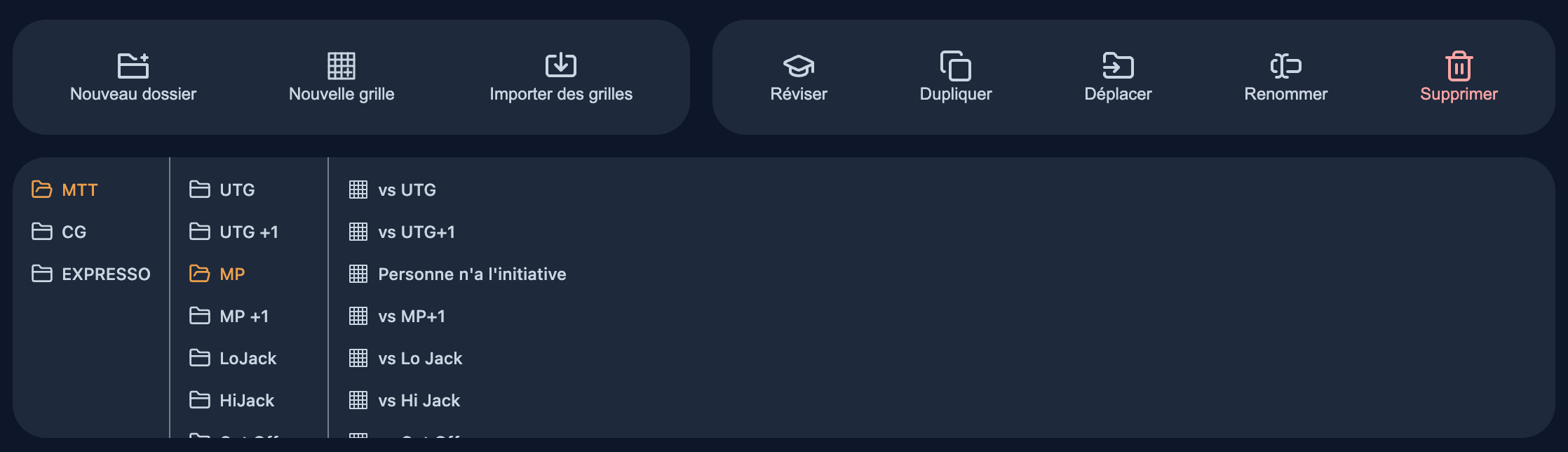
Central area:
- 📁 Folder list: Folders at the current level
- 📄 Grid list: Grids at the current level
- 🔍 Visual preview: Thumbnail of the 13×13 grid (optional)
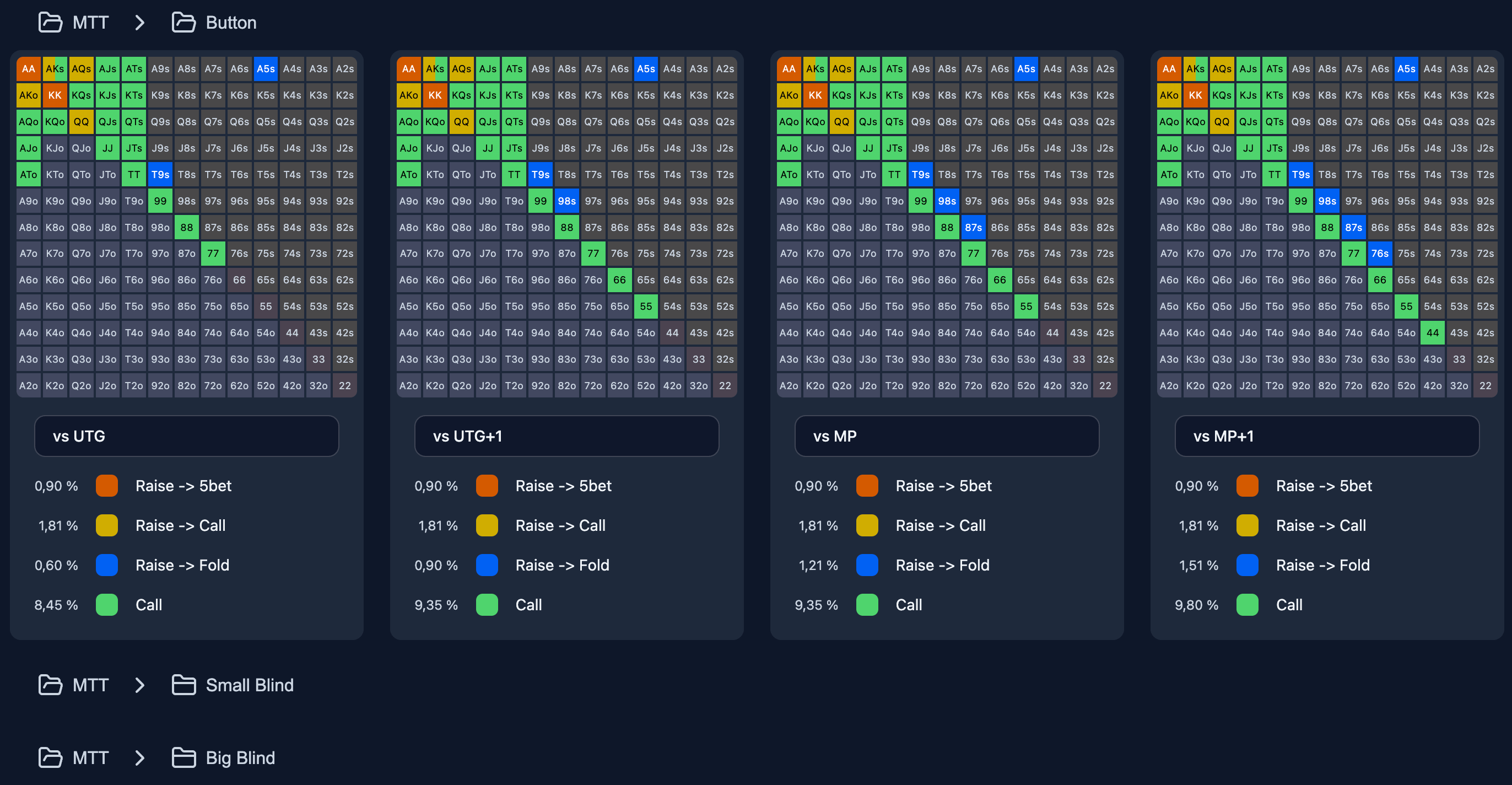
Multi-folder navigation:
- You can open multiple folders simultaneously in the central area
- Allows viewing content of multiple folders side by side
- Use case: For an "MTT Early 100bb+" folder, quickly visualize all grids from each position
- Click on a grid: Opens directly the Grid Editor to view and modify
Live: the library updates by itself. A grid, folder or concept created, renamed, moved or deleted elsewhere (by the AI coach, on another device or in another tab) shows up in the Explorer without reloading the page.
Navigating Folders
Breadcrumb
The breadcrumb at the top of the screen shows your position in the tree:
Root > Cash Game 6-max > UTGAvailable actions:
- Click on a level: Return to that parent folder
- Root folder icon (
 ): Return to the highest level
Opening a Folder
- Click on a folder in the list
- The folder content displays (subfolders + grids)
- The breadcrumb updates
Automatic root-folder opening
If your whole library fits in a single root folder, Poker Toolkit opens it directly when you land on the Strategy page, with subfolders expanded. You see your ranges immediately instead of clicking through a wrapper folder.
Opening a Grid
The whole card is clickable, not just its name:
- On desktop: click anywhere on the card to open the editor. On hover, a "Click to edit" hint appears. With the keyboard, the card is focusable and Enter or Space opens it
- On mobile: a plain tap does not navigate (so scrolling stays smooth). A long press (about half a second) opens the grid, with haptic feedback and a subtle visual effect. If you move your finger, the long press is cancelled and you keep scrolling
Going Back
- Click on the parent level in the breadcrumb
- Or click on the parent folder directly in the tree
Folder Management
Creating a Folder
Steps:
- Navigate to the parent folder where you want to create the subfolder
- Click "New folder" (➕ button)
- Enter the folder name (example: "Button 100bb")
- Confirm
Result: The folder is created and appears in the list.
Use cases:
- Create a structure by position: UTG, MP, CO, BTN, SB, BB
- Create a structure by format: Cash, MTT, Expresso
- Create a structure by stack: 100bb, 50bb, 20bb
Renaming a Folder
Steps:
- Click on the ⋮ menu to the right of the folder
- Select "Rename"
- Enter the new name
- Confirm
Result: The folder is renamed, all references are updated.
Moving a Folder
Steps:
- Click on the ⋮ menu to the right of the folder
- Select "Move"
- Choose the destination folder in the tree
- Confirm
Result: The folder (with all its content) is moved to the new parent.
Use cases:
- Reorganize your structure
- Group similar folders
- Separate ranges by format
Duplicating a Folder
Steps:
- Click on the ⋮ menu to the right of the folder
- Select "Duplicate"
- Choose the destination folder
- Confirm
Result:
- The folder is copied (with all its content: subfolders, grids, ranges)
- If duplicated in the same parent, the name becomes "Folder name (Copy)"
- The structure is recursive: all content is duplicated
Use cases:
- Create a variant of your ranges (example: "UTG 100bb" → "UTG 100bb (vs tight)")
- Test adjustments without losing the original
- Share a common base and customize later
Deleting a Folder
Steps:
- Click on the ⋮ menu to the right of the folder
- Select "Delete"
- Confirmation: "Are you sure you want to delete this folder and all its content?"
- Confirm
Result:
- The folder is permanently deleted
- It disappears right away, even with hundreds of grids inside: the deletion finishes in the background while you keep using the app. If it fails, the folder comes back with the message "… could not be deleted. Try again."
Warning: Deleting a folder deletes all subfolders, grids and concepts it contains; the cards of those concepts leave your reviews.
Grid Management
Creating a Grid
Steps:
- Navigate to the folder where you want to create the grid
- Click "New grid" (➕ button)
- Enter the grid name (example: "Open UTG 100bb")
- Confirm
Result:
- An empty grid is created (no default range)
- You are redirected to the Editor to fill in the grid
Tip: Use the AI Coaching to create pre-filled grids automatically!
Renaming a Grid
Steps:
- Click on the ⋮ menu to the right of the grid
- Select "Rename"
- Enter the new name
- Confirm
Result: The grid is renamed.
Moving a Grid
Steps:
- Click on the ⋮ menu to the right of the grid
- Select "Move"
- Choose the destination folder
- Confirm
Result: The grid is moved to the new folder.
Use cases:
- Reorganize your grids after reviewing your structure
- Group similar grids
- Separate by format or stack
Duplicating a Grid
Steps:
- Click on the ⋮ menu to the right of the grid
- Select "Duplicate"
- Choose the destination folder
- Confirm
Result:
- The grid is copied (with all ranges, colors, weights, notes)
- If duplicated in the same folder, the name becomes "Grid name (Copy)"
Use cases:
- Create a variant of an existing range
- Test adjustments without losing the original
- Create exploitative ranges from a GTO base
Example:
- Original grid: "Open BTN vs BB"
- Duplicate → "Open BTN vs BB (vs tight)"
- Adjust the copy: Remove marginal combos
Deleting a Grid
Steps:
- Click on the ⋮ menu to the right of the grid
- Select "Delete"
- Confirmation: "Are you sure you want to delete this grid?"
- Confirm
Result:
- The grid is permanently deleted, along with its review progress
Range Import
Preset Import
Poker Toolkit offers pre-made ranges ready to use for a quick start.
The pack gallery: "Import grids" (and the first Strategy step) opens a gallery:
- MTT path (discovery) (on top, free, not shown if you subscribe: the full Structured MTT pack is then alone on top): "The early stage and the poker basics, to get started fast": the Structured MTT › 1. Early stage block (the 100 10-max early-stage grids, organised by position then by opponent, the same ones as in the full pack), the 10 concepts of step 1 of the MTT path and the first one of step 2 (11 concepts and 94 cards), and your MTT program set up for you. Importing Structured MTT later completes the same folder with the other stages and keeps your reviews
- Structured MTT (full path) (on top): "Your MTT block by block, villain by villain": 1,300 grids by stage (early, middle, bubble, ITM, late stage) and stack (40–60bb, 25–40bb, 15–25bb), with the "Concepts MTT" folder (32 concepts and 280 cards) 🔒
- Cash game ranges to adapt (free): "A cash game base": 100 standard 10-max positional grids, for cash game only
- Expresso ranges to adapt (free): "3-max Spins": 9 grids
- Push or Fold: "Short stacks: shove or fold": two variants, no ante or 10% antes 🔒
Each card says who the pack is for, what it holds, and shows a "Free" or "Ranges Builder" badge (padlock).
See a pack before importing it: click a card to open its detail (← arrow to go back to the gallery):
- under the promise: "A base to adapt to your game": the grids are a starting point to adjust;
- first, "The structure you import": how the pack is organised (Structured MTT: stage › stack › position › opponent) and its folder tree (the 5 stages and their stacks), yours to take in hand;
- beside it, small, an "Example grid": a real grid from the pack and its path (e.g. the bubble, 25–40bb, Big Blind vs Cut Off);
- for Structured MTT, "Included: 32 concepts and 280 review cards", from the poker basics to the final table: base content to get started fast, to build on with your own notes. Every grid has a note (how to adapt it to the opponent, the concepts to read, with links). The concepts are in the app language once translated (English and French today, French in the other languages for now);
- if you already have the Structured MTT grids: "Import only the 32 concepts";
- review in grid mode and in Situations;
- the "Import" button, or "Unlock Ranges Builder" when the pack needs a plan ("Unlock the full path" for Structured MTT).
Everyone can open every pack's detail, even without a plan.
Structured MTT, Push or Fold and file import require a plan
The Structured MTT (and its concepts alone), Push or Fold and from a file imports require a paid plan (Ranges Builder or a full plan). Without one, the pack's detail shows "Unlock Ranges Builder" ("Unlock the full path" for Structured MTT), which opens the subscription screen. MTT path (discovery), Cash game ranges to adapt and Expresso ranges to adapt are free.
See Subscription to compare plans.
Ranges to adapt
These presets are starting points to adapt according to your playing style, level, and opponents. Don't apply them blindly!
How to import:
- Click "Import grids" in the Explorer (or, the first time you open Strategy, pick a pack in the gallery of the "Define your ranges" step, after the colour palette)
- Open a pack, then "Import": the window closes at once and a message says "Preparing your … pack, we'll let you know when it's ready."
- The import runs on our servers: you can keep using the app, or even close it. While it runs, the pack's button shows "Import in progress…" (and the onboarding "Preparing your ranges…")
- When it is ready: after an MTT import (MTT path (discovery) or Structured MTT), the app opens your MTT path; otherwise, on the Explorer, the imported folder opens right away ("Your ranges are ready."); anywhere else, a "Your … pack is ready" message offers "View". If the app was closed, the message shows the next time you open it
- You can then edit them freely
Importing a pack you already have: if the folder of a pack you imported is still in your library, "Import" (from the Explorer as from the onboarding) first opens a "You already have this pack" window:
- "Open my pack" opens the folder you already have;
- "Replace" permanently deletes your current pack, then imports it again (the "Concepts MTT" stay: an import only adds the concepts you are missing, never a duplicate);
- "Import a copy" imports a second copy, as before. Note: each copy counts in your reviews.
Result:
- Complete structure with folders and grids
- Pre-filled ranges with combos, colors, names
- Favorite captions imported
JSON File Import
You can import ranges exported by other Poker Toolkit players or your own backups.
How to import:
- Click "Import grids", then the "Import an exported file (.json)" link at the bottom of the gallery, and pick the file (Ranges Builder or full plan; without a plan, the link opens the subscription screen)
- The file is uploaded as soon as it is picked and the window closes: the import runs on our servers, like the packs
- The server checks the file (Poker Toolkit v1 export, 10 MB max). Otherwise a message explains why: not a Poker Toolkit export, empty or corrupted export, "The file is too large (10 MB maximum)."
- When it is ready, the imported folder opens (or "Your ranges are ready" with "View" if you are elsewhere)
What is imported:
- Folder structure (recursive)
- Grids with all ranges
- Colors and names (captions)
- Combo weights
- Folder and grid tags, as exported (plus the ones each folder passes down to its content)
A folder's notes (concepts) are not part of the export.
- Grid notes
Tags and Colors
Tags are a second way to organize your library, cutting across the folder tree. A folder files a grid in one single place; a tag can link it to several themes at once.
Examples: MTT (Format), 6-max (Table size), 25–40bb (Stack), to review or coach approved (Other: no accents, letters, digits, spaces, - and _).
Adding Tags
- On a grid's or concept's page, tap the tag line (elsewhere, open the menu of a grid, a folder or a concept and choose "Edit tags")
- Tap + Add a tag: a chip to fill in appears, in its category's colour; its colour dot switches category (Format, Position, Stack… or Other)
- Type the value or pick a suggestion, then Enter
Tags apply to grids, folders and concepts: it's the same editor everywhere. Categories, automatic detection and folder tags are detailed in Tags.
The Color Catalog
Each category has its colour, which you can change in your profile, Tag colours page. A new Other tag takes the Other type's colour; you can give it its own shade (palette in the chip, colour dot in edit mode, or Tag colours → Other tags). These colours follow you on all your devices: the same tag keeps the same colour everywhere in the app. The rendering adapts to light and dark themes, without you having to pick two shades.
Filtering by Tag
From the strategy search, the Filter by tag button narrows the display to matching items. Suggestions are grouped by category.
The panel starts with a Ready-made filters row: the program's situations and the table sizes present in your library, in one tap (see Tags). The old number-of-players filter button above the columns has been removed: the table size is a tag.
Matching rule: at least one tag in every chosen category.
- Within one category, it's one or the other:
15–20bband25–40bb(Stack) find grids at 15–20bb or at 25–40bb. - Across categories, it's one and the other:
15–20bb(Stack) andBubble(Stage) find grids that are both 15–20bb and bubble.
If you only use Other tags, nothing changes: filtering on bluff and to review gives you everything carrying either or the other. The note below the field reminds you of the rule.
Parent folders are kept in the results, so you can always locate a found grid within its tree.
A filter (by tag and/or by name) applies right in your usual columns: you browse as usual, only the items found stay shown. Each folder shows, next to its name, how many items were found inside; folders with no result are hidden. If the open folder no longer holds anything found, the columns go back to the deepest folder that does. The folder content shown under the columns is filtered the same way. When nothing matches: "No results".
A pattern that works well
Tag to review every grid you stumble on during your review sessions. Once a week, filter on that tag and handle the batch in one go.
File Order
Automatic Sorting
By default, folders and grids are sorted by creation order (oldest first).
Manual Sorting
You can manually reorganize your files:
How:
- Click and hold on a file
- Drag to the desired position
- Release to drop
Use cases:
- Put the most used folders at the top
- Organize by priority (early positions > late)
- Group by similarity
Concrete Use Cases
Case 1: Organize My Ranges by Format
Objective: Separate my Cash Game, MTT, and Expresso ranges.
Structure:
Root
├── 📁 Cash Game 6-max
│   ├── 📁 100bb
│   ├── 📁 50bb
│   └── 📁 20bb
├── 📁 MTT
│   ├── 📁 Early (100bb+)
│   ├── 📁 Middle (30-100bb)
│   └── 📁 Bubble (10-30bb)
└── 📁 Expresso
    ├── 📁 25bb
    ├── 📁 12bb
└── 📁 Push or FoldTime: 5 minutes to create the structure Benefit: Instant navigation according to format played
Case 2: Duplicate a Range to Test an Adjustment
Objective: Test an adjustment on my UTG range without losing the original.
Steps:
- Find the "Open UTG 100bb" grid
- Duplicate → "Open UTG 100bb (tight test)"
- Open the copy
- Remove marginal combos (KJo, A9s, etc.)
- Test in session
- If it works: Keep. Otherwise: Delete.
Time: 2 minutes Benefit: Risk-free experimentation
Case 3: Import Push or Fold Ranges
Objective: Have push/fold charts for tournaments.
Requirement: a Ranges Builder plan or a full plan.
Steps:
- Click "Import grids"
- Open the Push or Fold card, choose "10% antes", then "Import"
- When it is ready, the "Push or Fold 10% Ante" folder opens
- Explore the folder: Subfolders by BB count (20bb, 15bb, 10bb, etc.)
- Review each grid, or play the hands in Situations with the Push or fold situation
Time: 1 minute to import (the import runs on our servers, the app stays usable) Benefit: Push/fold charts ready to learn
Case 4: Share My Ranges with a Friend
Objective: Give my Cash 6-max ranges to a friend.
Steps:
- Select the "Cash Game 6-max" folder
- Click "Export"
- File
cash-6max.jsondownloaded - Send the file to my friend (email, Discord, Drive)
- My friend imports the file into their Poker Toolkit
- They now have all my ranges
Time: 2 minutes Benefit: Strategy sharing
Accessing the Explorer
The Explorer is accessible from:
- Main menu → Strategy
- Direct URL: poker-toolkit.com/en/app/strategy
Ready to work on your ranges?
Learn More
Other Ranges Pages
- Ranges Overview - Understand the 3 components
- Grid Editor - Create and modify your ranges
- Learn Mode - Memorize with quizzes
- Draw Mode - Practice by drawing
Other Resources
Tip
Two possible approaches: import a preset to start quickly, or ask AI Coaching to create your personalized structure from scratch. Avoid combining both to prevent duplicates!