
Grid Editor
The Grid Editor allows you to create and modify your ranges in two ways: visual (13×13 grid) or textual (poker notation). Combine both approaches for fast and precise editing.
Why the Editor?
Preflop ranges are complex: 1326 possible combinations, variable frequencies depending on situations, exploitative adjustments... The Editor gives you the tools to create and customize your ranges precisely:
- ✅ Visual editing: Select your combos on the 13×13 grid by clicking or dragging to select them quickly
- ✅ Textual editing: Use poker notation (AKs, QQ+, 22-77) for quick editing
- ✅ Weights (frequencies): Play certain hands at 50%, 75%, 25% depending on the situation
- ✅ Custom colors: Visualize your ranges with clear and distinct colors
- ✅ Notes: Document your ranges (context, adjustments, exploits)
Result: Precise ranges, easy to memorize, and adapted to your game.
Editor Interface
Overview
When you open a grid in the Editor, you see:
At the top:
- 📝 Grid name: File title
- 🎓 "Learn" button: Launch Learn Mode on this grid
- ✏️ "Draw" button: Launch Draw Mode on this grid
- 📋 Actions menu: Duplicate, Rename, Move, Delete...
Central area:
- 🎴 13×13 grid: Visual representation of all possible hands
- 🎨 Range list: Ranges of this grid (Open, Call, 4bet, etc.)
- 📊 Statistics: % and number of combos per range
At the bottom:
- 📝 Notes area: Free text to document the grid
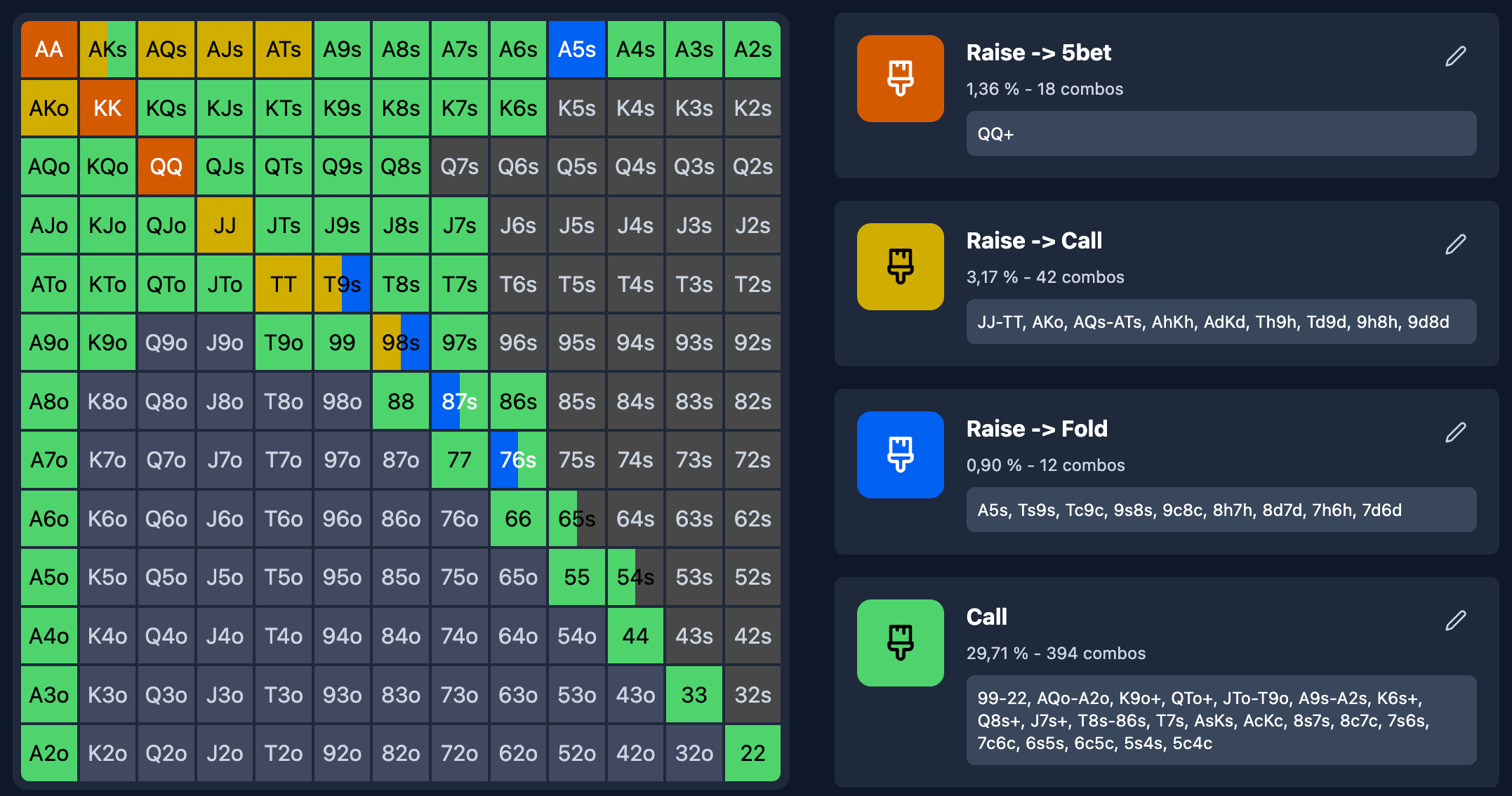
13×13 Grid (Visual Editing)
Grid Organization
The 13×13 grid represents all possible hands in poker:
- 169 cells: Each cell = one type of hand (AA, AKs, AKo, KQo, etc.)
- 1326 combos: Total possible combinations
- Organization:
- Diagonal: Pairs (AA, KK, QQ... 22)
- Above the diagonal: Suited hands (AKs, QJs, T9s...)
- Below the diagonal: Offsuit hands (AKo, QJo, T9o...)
Selecting Hands (Click)
Steps:
- Select a range from the list on the left (example: "Open")
- Click on a cell in the grid (example: "AKs")
- The hand is added to the selected range (colored cell)
- Click again to remove the hand
Behavior:
- If the hand is already in another range → It is removed from the old one and added to the new one
- Default weight: 100% (always played)
Selecting by Drag
To quickly select multiple hands:
Steps:
- Select a range (example: "Call")
- Click and hold on a starting cell (example: "QQ")
- Drag to an ending cell (example: "88")
- Release: All cells between QQ and 88 are added
Use cases:
- Add all pairs at once (AA → 22)
- Add a series of suited connectors (AKs → A2s)
- Select a rectangular area
Fold Mode (Eraser)
To remove hands from all ranges:
Steps:
- Click on the "Eraser" icon or select "Fold"
- Click on the cells you want to remove
- The hands are deleted from all ranges
Use cases:
- Clean up hands added by mistake
- Remove folded hands from all ranges at once
Detailed Combo Selection
If no range is selected and you click on a cell, you can view and select the exact combos represented by that cell (example: for AKs, see AhKh, AsKs, AdKd, AcKc).
Textual Editing (Poker Notation)
Text Field per Range
Each range has a text field where you can edit directly in poker notation.
Where to find it:
- To the right of the range name
- Displays the current content (example: "AA, KK, QQ+, AKs")
How to use it:
- Click on the text field of the range
- Edit the text (add or remove combos)
- Automatic validation: The text is parsed in real time
- Error: If the notation is invalid, an error message is displayed
Formatting and links:
- The note accepts Markdown (bold, lists, headings…); a plain-text note shows as is
- Type
[[or right-click in the area (on a computer) to insert a link to a concept, a folder or a feature (e.g.[[link:feature:bankroll]]) - Click "Done": the note shows formatted, links become clickable chips
- "Edit" reopens the text
Saving:
- Auto-save after 500ms without typing
- No need for a "Save" button
Supported Poker Notation
Poker Toolkit supports rich notation for editing your ranges quickly.
Basic Syntax
| Notation | Meaning | Examples |
|---|---|---|
| Pairs | Pair name | AA, KK, 22 |
| Suited (s) | Suited | AKs, QJs, T9s |
| Offsuit (o) | Offsuit | AKo, QJo, T9o |
| Range (+) | And higher | QQ+ → QQ, KK, AAATs+ → ATs, AJs, AQs, AKs |
| Range (-) | Between X and Y | 22-77 → 22, 33, 44, 55, 66, 77A9-AT → A9, AT (suited + offsuit) |
| Range (A-X) | A with X to Y | AJ-AT → AJs, AJo, ATs, ATo |
| No suffix | Suited + Offsuit | AK → AKs + AKo (16 combos) |
Weight Syntax
| Notation | Meaning |
|---|---|
AA@50 | AA played 50% of the time |
AKs@75 | AKs played 75% of the time |
QQ@25 | QQ played 25% of the time |
AA | AA played 100% (default) |
Exact Combos
You can also define specific combos with card suits:
AhKh→ Ace of hearts + King of heartsAsKs→ Ace of spades + King of spadesAhKd→ Ace of hearts + King of diamonds
Complete example:
AA, KK, QQ@75, AKs, AKo@50, AQs, AJs@25, KQsInterpretation:
- AA, KK: 100%
- QQ: 75%
- AKs: 100%
- AKo: 50%
- AQs: 100%
- AJs: 25%
- KQs: 100%
Real-Time Validation
The application validates your notation instantly:
Valid notation:
- ✅ The text is accepted
- ✅ The grid updates automatically
- ✅ Stats (% and nb combos) recalculate
Invalid notation:
- ❌ Error message below the field
- ❌ The grid doesn't change
Color System and Captions
Range Colors
Each range in a grid has:
- A name: "Open", "Call", "4bet", etc.
- A background color: To visualize combos on the grid (hex, e.g.:
#0061f3) - A text color: For readability (e.g.:
#fffffffor white)
How to modify:
- Click on the range in the list
- Click on the color square to the left of the name
- Color picker opens
Favorite Captions
Captions are pre-recorded color+name combinations for easy reuse.
9 predefined captions:
| Caption | Color | Text | Usage |
|---|---|---|---|
| Open → Fold | #0061f3 | White | Open range that folds vs 3bet |
| Open → Call | #d0ad00 | Black | Open range that calls vs 3bet |
| Open → 4bet | #d45a00 | White | Open range that 4bets vs 3bet |
| Open | #0061f3 | White | Simple open range |
| Push | #0061f3 | White | Push range (all-in) |
| Call | #4fd46d | Black | Call range |
| Raise → Fold | #0061f3 | White | Raise range that folds vs 4bet |
| Raise → Call | #d0ad00 | Black | Raise range that calls vs 4bet |
| Raise → 5bet | #d45a00 | White | Raise range that 5bets vs 4bet |
These captions are included by default when importing range packs. You can also create your own captions at any time.
Linking a Range to a Caption
3 link modes:
Linked
 :
:- Range uses an existing caption
- Modifying the caption updates all ranges that use it
New
 :
:- Create a new caption from this range
- Saves the current colors as a new caption
Unique
 :
:- Custom colors without link
- Modifying the range doesn't create/modify any caption
How to link:
- Open the caption picker (click on color square)
- Choose an option:
- Click on an existing caption → Linked mode
- Click on "Create new caption" → New mode
- Choose custom colors → Unique mode
- Validate
Weights and Frequencies
What is a Weight?
A weight is the frequency at which you play a given hand in a range.
Examples:
AA@100(default): Play AA 100% of the timeAA@50: Play AA 50% of the time, fold 50%QQ@75: Play QQ 75%, fold 25%AKo@25: Play AKo 25%, fold 75%
Why Weights?
Use cases:
- Mixed hands: Some hands are borderline → Play them partially
- Balance: Avoid being too predictable (mix actions)
- GTO ranges: Solvers use mixed frequencies
Concrete example:
- You are BTN, you open vs BB
- Your open range includes:
JTo@100, T9o@75, 98o@50, 87@25 - JTo: Always open
- T9o: Open 75%, fold 25%
- 98o: Open 50%, fold 50%
- 87o: Open 25%, fold 75%
Weight Selector
At the top of the editor, a weight selector allows you to choose the current weight:
Available options:
- 100% (default)
- 75%
- 50%
- 25%
How to use:
- Select a weight (example: 50%)
- Select a range (example: "Open")
- Click on the cells in the grid
- The hands are added with the selected weight
Note
The weight selector appears at the bottom of the screen (floating bar) when a range is selected.
Weight Display
Weights are visible in two ways:
In the text notation:
AA, KK, QQ@75, JJ@50, TT@25- Weight displayed inline after
@
On the grid (optional):
- Color opacity according to weight (100% = opaque, 25% = transparent)
- Badge with percentage on the cell
Weighted Combo Calculation
Statistics take weights into account:
Example:
- QQ: 6 combos × 100% = 6 combos
- JJ: 6 combos × 75% = 4.5 combos
- TT: 6 combos × 50% = 3 combos
- Total: 13.5 weighted combos
Display:
- Number of combos: 13.5 (instead of 18)
- Percentage: (13.5 / 1326) × 100 = 1.02%
Multi-Range Mixed Strategies
An advanced feature allows you to distribute the same hand between multiple ranges with different weights. This is essential for representing GTO-style mixed strategies.
Principle:
- Combos with a weight < 100% can exist in multiple ranges simultaneously
- Combos at 100% (without @ suffix) are exclusive to a single range
Concrete example: You want to represent a mixed strategy for QTs facing a 3bet:
- "Call" range:
QTs@35(call 35% of the time) - "All-in" range:
QTs@65(all-in 65% of the time)
How to do it:
- In the "Call" range, enter
QTs@35 - In the "All-in" range, enter
QTs@65 - Both ranges will display QTs with their respective weights
Behavior:
- Text input: If you write
QTs@35, QTs is not removed from other ranges - Text input: If you write
QTs(no weight = 100%), QTs is removed from other ranges - Grid click: Always adds at 100% (exclusive)
- Weight slider: Weights < 100% allow coexistence
Use cases:
- GTO strategies with mixed frequencies
- Solver ranges with multiple possible actions
- Representing spots where you mix call/raise/fold
Tip
For mixed strategies, always use textual input with the @weight syntax. This allows you to precisely control the distribution between ranges.
Range Management
Adding a Range
Steps:
- Click on "Add a range" (button ➕)
- Enter a name (example: "4bet")
- Choose a color:
- Select a predefined caption
- Or create custom colors
- Validate
Result:
- The range appears in the list
- It is empty by default (no combos)
- You can now add hands
Renaming a Range
Steps:
- Click on the pencil icon ✏️ to activate edit mode
- Modify the name of the range
- Save
Result: The name is updated.
Edit Mode
The pencil ✏️ activates edit mode to modify the name, colors, or delete a range.
Deleting a Range
Steps:
- Click on the pencil icon ✏️ to enter edit mode
- Click on the delete icon 🗑️
Constraint: At least 1 range must remain in the grid (impossible to delete everything).
Copy/Paste a Range
You can copy a range and paste it in another grid.
Copy
Steps:
- Click on the ⋮ menu to the right of the range
- Select "Copy"
- The range is copied to the clipboard (data in memory)
What is copied:
- Range name
- Combos (text notation)
- Colors (background + text)
- Combo weights
- Link to caption (if existing)
Paste
Steps:
- Open another grid (or stay in the same one)
- Click on "Paste a range" (button 📋)
- The copied range is added to the grid
Use cases:
- Reuse a range between multiple grids
- Duplicate a complex range without recreating it
- Share a range between different formats (Cash → MTT)
Notes and Documentation
Notes Area
At the bottom of the editor, a notes area allows you to add free text to document your grid.
What you can note:
- Context: "Range vs tight player who 3bets 5%"
- Adjustments: "Add T9s if villain calls too wide"
- Sources: "Range from [solver/coach/book]"
- Exploits: "Remove QQ if villain never folds vs 4bet"
- Reminders: "Be careful not to overplay AQ OOP"
Formatting and links:
- The note accepts Markdown (bold, lists, headings…); a plain-text note shows as is
- Type
[[or right-click in the area (on a computer) to insert a link to a concept, a folder or a feature (e.g.[[link:feature:bankroll]]) - Click "Done": the note shows formatted, links become clickable chips
- "Edit" reopens the text
Saving:
- Auto-save after 500ms without typing
Real-Time Statistics
The editor displays automatic statistics for each range:
For each range:
- Percentage: % of all possible hands (out of 1326 combos)
- Number of combos: Total number of combos (weighted by weights)
- Text notation: Range summary (e.g.: "AA, KK, QQ+")
Global statistics:
- Total combos: Sum of all combos of all ranges
- Fold %: Percentage of hands not played (1326 - total combos)
Display example:
Open: 15.2% (201 combos)
Call: 8.4% (111 combos)
4bet: 3.1% (41 combos)
Fold: 73.3% (973 combos)
Actions on the Grid
Learn
"Learn" button in the top right: Launches Learn Mode (quiz) on this grid.
What happens:
- You are redirected to Learn Mode
- The quiz generates questions on this grid
- Test your knowledge with immediate feedback
Draw
"Draw" button in the top right: Launches Draw Mode (drawing) on this grid.
What happens:
- You are redirected to Draw Mode
- Blank grid where you must redraw the range from memory
- Automatic comparison with accuracy score
Duplicate
Menu ⋮ → Duplicate: Create a complete copy of the grid.
Result:
- Grid copied with all ranges, colors, weights, notes
- Name with "(Copy)" suffix
- Placed in the same folder
Rename
Menu ⋮ → Rename: Change the grid file name.
Result: The grid name is updated in the Explorer.
Move
Menu ⋮ → Move: Change parent folder.
Result: The grid is moved to the selected folder.
Delete
Menu ⋮ → Delete: Delete the grid (confirmation required).
Result: The grid is permanently deleted.
Export
Menu ⋮ → Export: Download the grid in JSON format.
Export format:
{
  "version": "ptk-v1-export",
  "date": "2026-01-14T10:30:00Z",
  "data": {
    "name": "Open UTG 100bb",
    "ranges": [
      {
        "name": "Open",
        "backgroundColor": "#0061f3",
        "textColor": "#ffffff",
        "textRange": "AA, KK, QQ@75, AKs",
        "favoriteCaptionId": "caption-open"
      }
    ],
    "note": "GTO range for UTG in 6-max 100bb"
  }
}
Concrete Use Cases
Case 1: Creating a UTG Open Range
Objective: Define my UTG open range in 100bb 6-max.
Steps:
- Create a grid "Open UTG 100bb"
- Add an "Open" range
- Method 1 (text): Write
AA-TT, AKs-ATs, AKo, AQo+ - Method 2 (visual): Click on the grid cells
- Check stats: ~12-15% (159-199 combos)
- Add a note: "Standard GTO range, widen vs tight"
Time: 3-5 minutes Benefit: Clear and memorable range
Case 2: Copying a Range Between Grids
Objective: Reuse my "Open UTG" range in a "Open UTG vs 3bet" grid.
Steps:
- Open "Open UTG 100bb"
- Copy the "Open" range (menu ⋮ → Copy)
- Open "Open UTG vs 3bet"
- Paste the range (button 📋)
- Rename the range → "Fold vs 3bet"
- Remove hands that call or 4bet
Time: 1 minute Benefit: No need to recreate the range from scratch
Case 3: Using Favorite Captions
Objective: Harmonize the colors of all my "Open" ranges.
Steps:
- Create an "Open" caption with blue color
#0061f3 - In each grid, link the "Open" range to this caption (Linked mode)
- If I want to change the color of all "Opens":
- Modify the "Open" caption → New color
#0088ff - All linked ranges update automatically
- Modify the "Open" caption → New color
Time: 2 minutes for initial setup Benefit: Visual consistency across all grids
Accessing the Editor
The Editor is accessible from:
- Explorer → Click on a grid
- Coaching → Ask the coach to create a grid
- Direct URL: poker-toolkit.com/en/app/strategy
Ready to create your ranges?
Learn More
Other Ranges Pages
- Ranges Overview - Understanding the 3 components
- Grid Explorer - Organize your ranges
- Learn Mode - Memorize with quizzes
- Draw Mode - Practice by drawing
Other Resources
Tip
Combine visual editing (to see the shape) and textual editing (for speed). Use weights for borderline hands and favorite captions to harmonize your colors! 🎨